Pairing procedure for Windows 11, 10, and 8.1
If your computer supports Bluetooth®, you can easily connect your Bluetooth headphones and speakers. Most computers today support Bluetooth, but you can always use a USB Bluetooth adapter if yours doesn't. If you're not sure whether your computer supports Bluetooth, just contact the manufacturer for more information.
Important! Read this before you start
Watch this video
You may refer to this video tutorial to learn how to pair your Sony headphones to Windows 11.
Tip: Learn how to turn captions on or off when watching Internet videos from YouTube
Step 1: Put the headphones or speaker into pairing mode
This makes the device discoverable by the computer.
Your Bluetooth headphones and speakers may immediately go into pairing mode when used for the first time or after initializing (reset). However, the second time you pair it, you may have to press and hold the Power button for 5-7 seconds.
Notes:
- If your headphones or speaker doesn't immediately go into pairing mode, press and hold the Power button continuously for 5-7 seconds or until the Bluetooth indicator flashes rapidly (depending on the device).
- For details on how to set the audio system to pairing mode, refer to the manual of the product.
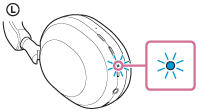
Below is an example of WH-1000XM5.
 (power) button for about 2 seconds.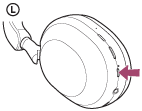
Step 2: Pair the devices and set the sound output on the computer
The images and descriptions used in these steps are only an example. What you see may be slightly different depending on your devices.
Connect using the Swift Pair function (Microsoft® Windows® 11 or Windows® 10)
Connect without using the Swift Pair function (Windows 11, 10, 8.1 or Apple® Mac® OS X® OS)
You are all set to start listening to music or streaming content from your computer through your headphones!
Troubleshooting tips
- Turn Bluetooth OFF and ON again
- Check the Bluetooth drivers for your computer
- Turn OFF Airplane mode (Windows 10)
-
If a Passkey (Passcode, PIN code, PIN number, Password, etc.) is required, enter 0000.
- For Bluetooth headset, it can be paired with multiple devices, but can only play music from 1 paired device at a time.
- If there is no sound from headphones after connection is established, refer to When the headphones are connected to a computer there is no sound or the microphone does not work.
Warranty Information
For information on Sony warranties
Contact support
Contact your Sony Support team
Support by Sony (Mobile App)
Never miss an update again! Find information and receive instant notifications about your product.


Repair Services
Learn self-fix information and check service centre locations here.