I paired my Bluetooth speakers with my computer, but no sound comes out or I can't reconnect
IMPORTANT: This article applies only to specific products and/or operating systems. Check the Applicable Products and Categories section of this article before starting these steps.
Important! Read this before you start
Pairing steps
Step 1. Set the audio system to pairing mode.
NOTE: For details on how to set the audio system to pairing mode, refer to the manual of the product.
Below is an example of SRS-XB31 model.
 (power) indicator lights up in white*1.
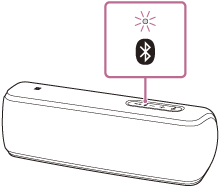
 (BLUETOOTH) indicator begins to flash in blue.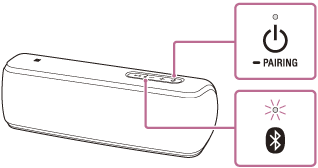
 PAIRING button. Proceed to step
  .
.
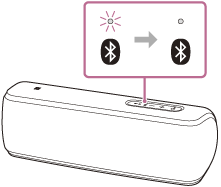
If you have previously paired other Bluetooth speakers, delete the speaker from the list of paired Bluetooth devices, and then pair it again.
Step 2. Operate a device and complete the pairing
Select your source device from the following list to confirm the pairing procedure:
Note: Not all Sony Google/Android TVs can be used with Bluetooth headphones or speakers. Verify your TV supports Bluetooth using the article Can I use Bluetooth headphones, speakers, and soundbars with my Android TV or Google TV?
If you have successfully connected the Bluetooth speakers to a computer through Bluetooth but can't hear audio through the Bluetooth speakers, you may need to change your computer settings.
The menu items displayed on the computer may vary depending on the model or OS version:
If the issue is not resolved
- Make sure the volume of your computer isn't set to mute.
- Restart the audio playback app.
- If the issue is still not resolved, please contact us for further support.
Warranty Information
For information on Sony warranties
Contact support
Contact your Sony Support team
Support by Sony (Mobile App)
Never miss an update again! Find information and receive instant notifications about your product.


Repair Services
Learn self-fix information and check service centre locations here.